CVAT Intro and player annotations
Last updated by: Mouse933, Last updated on: 23/04/2026
Last updated by: Mouse933, Last updated on: 01/04/2026
Last updated by: Basil Behanan, Last updated on: 27/09/2025
Last updated by: Basil Behanan, Last updated on: 27/09/2025
CVAT Intro and player annotations
Player annotations will include drawing bounding boxes and tracking each individual player on the field. Here is a walk through of the CVAT interface and how to do player annotations properly.
Drawing a bounding box
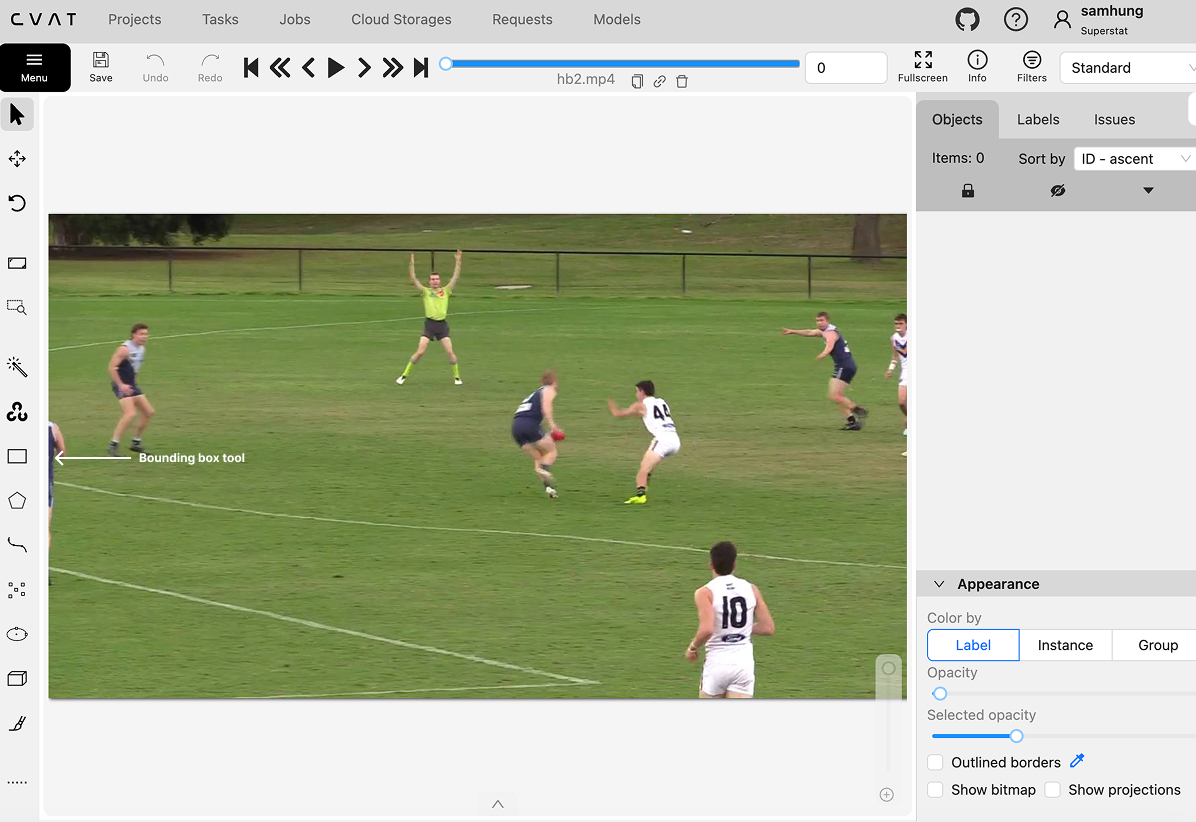
- Click on the bounding box tool on the left side menu.
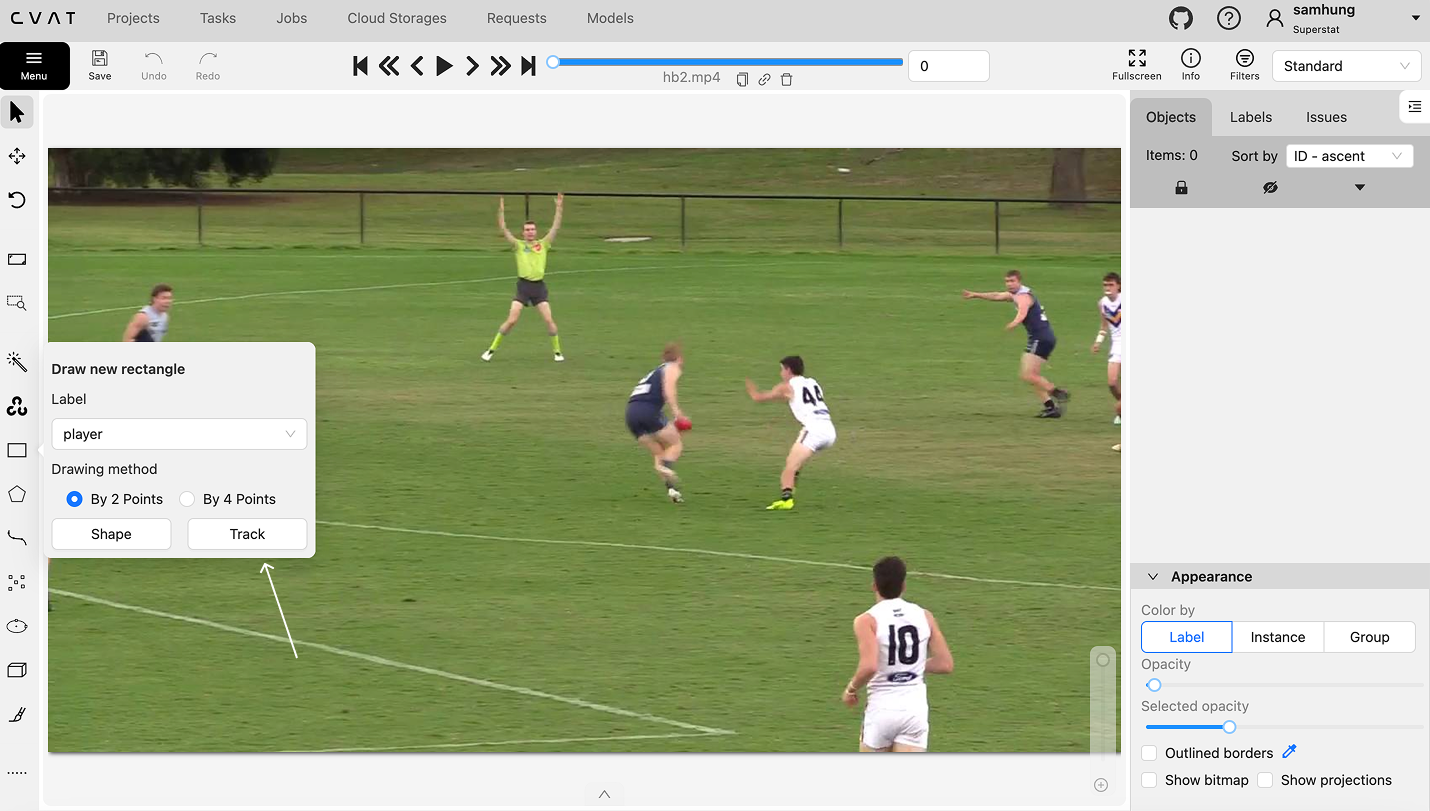
- Make sure to select the "track" tool. The difference between shape and track is that shape doesn't assign an ID to a box and won't track them across frames. It is typically used only for object detection. However, we are training a model to not only detect player, but to track and re-identify the players.
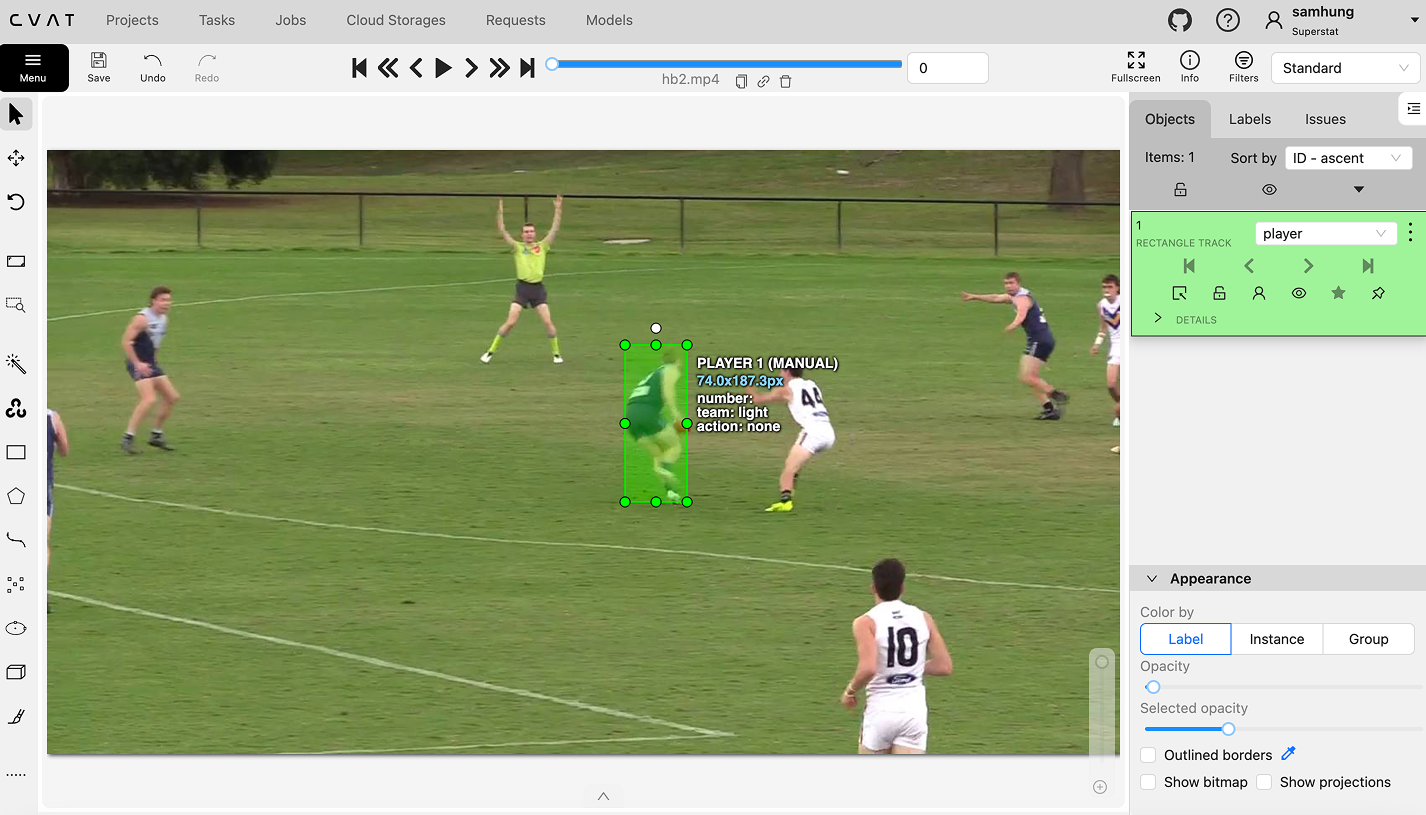
- Once you click on track, draw a bounding box around a person. Try
keep a bounding box as tight as possible to the person. You are
required to draw a box around each player on the field. You do not
draw boxes around the referee and any person who isn't a player on
the field. (If the camera captures players on the bench, you do not
include them. The model learns to pick up only players active on the
field)
Object properties (Right side menu)
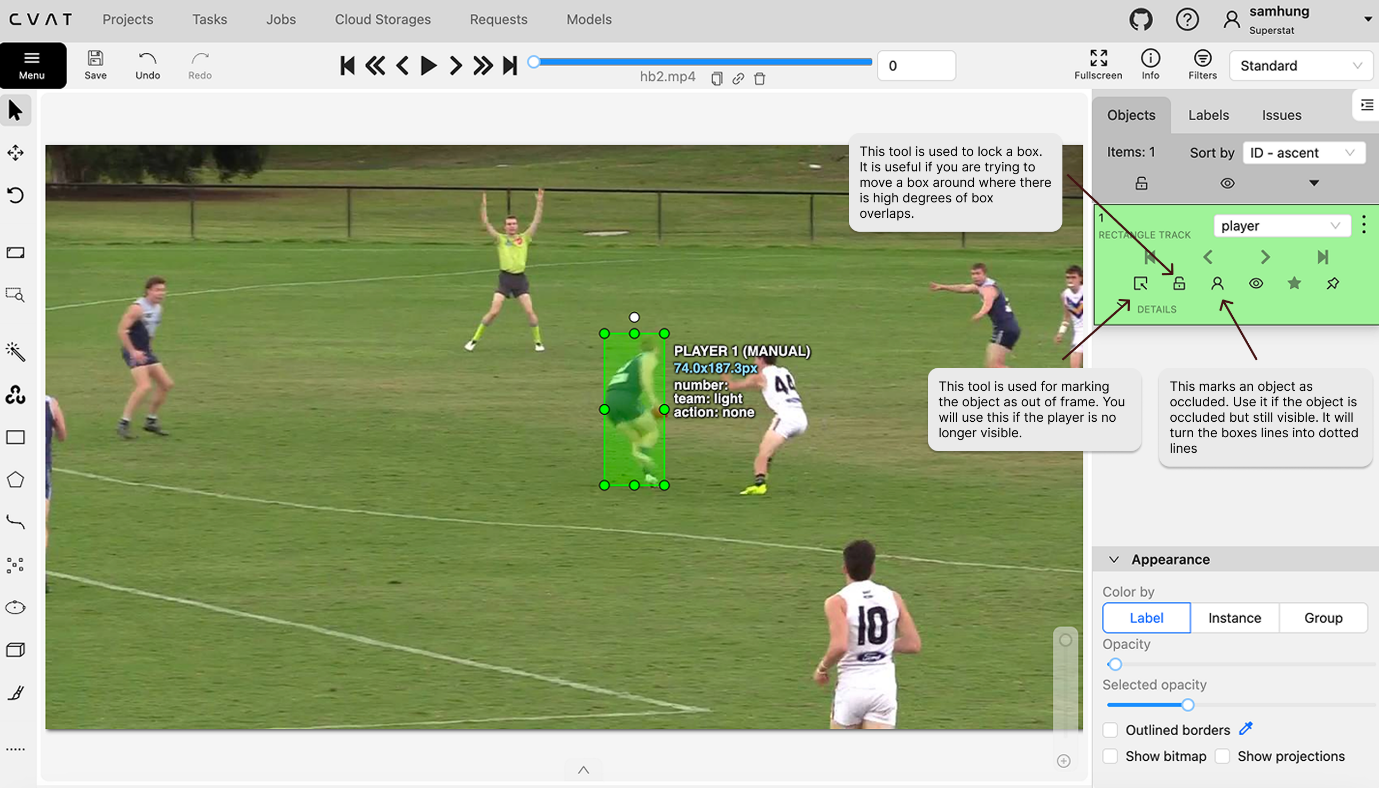
- Out of frame: If a person is no longer in frame or is completely occluded, mark the player as "out of frame". If the player is completely occluded in one frame, but becomes visible in the second you can than turn it off in the second. However, if they exit the frame borders completely but re-enter the frame, you have two options:
Are you 100% sure that it is the same person who exited the frame?
- If so, feel free to turn off the "completely occluded" for that person and keep tracking him
You are not sure if it's the same person
- In this scenario, do a new bounding box annotation for the person.
-
Lock: Sometimes when players are standing near each other where the boxes overlap, and you need to adjust a box, you can lock all the other boxes so they don't move.
-
Occluded: If a person is partially occluded, but you can still see them, mark them as occluded. Their box will have a bordered line around them.
-
Keyframe: The star on the very right represents a key frame. Whenever you move or adjust a box it will automatically mark it as a key frame. Non-key frame moments usually don't have many movements for the object.
Object interpolation
When an object doesn't move much in a few frames, you can use object interpolation which predicts the objects path within 2 key frames. Here's how to use it:
-
On the initial frame, draw a bounding box for the player. This first box is also going to be called a keyframe
-
Now click through a few frames where the object starts to change it's motion. In that frame, fix up the location of the bounding box. That will automatically be labelled as a key frame as well.
-
Now for all the frames in between, make sure to fix up the bounding boxes so it wraps around the object nicely.
Annotating player attributes
When tracking and annotating a player, there are certain data points that we want to keep track of. This includes:
-
Player team (light or dark) - Immutable
-
Player number - Immutable
-
Action - Mutable
The word mutable means that the data point can be different across frames for the same player. For example, the players team and number won't change in frame 1 when compared to frame 2, which is why it's immutable. However, the player action can be different. In frame one, they might not be doing anything, but in frame 3 they might be doing a kick.
Labelling the team
When we annotate a player, we need to assign them to either a light or dark team. Which team you consider light or dark is up to you, but keep it consistent for the full video.
Labelling the number
If the number becomes visible at some point of tracking them, or you know the number of a player you are annotating (even if it doesn't become visible, maybe he exited and re-entered the frame), make sure to fill in their number. However, if there is no way for you to determine what number that player is, you can leave him out.
Labelling the action
For the player action, you want to annotate the frame as precise as you can. In my video demonstration above, you can see that I click through a few frames near the handball to see which frame is considered the handball. To keep it consistent, we will always annotate the frame where the ball makes contact with the person (or as close as possible).
Tackles will be a special one, as it doesn't involve a ball. To annotate the tackle, we will annotate the frame where a persons hand touches the other person.
Once you assign an action to a frame, make sure to set the following frames back to none, or else it will carry forward the action.
By default, it will do this (NOT what we want):
Frame 1 Frame 2 Frame 3 Frame 4 Frame 5
None None Kick Kick Kick
What we want instead:
Frame 1 Frame 2 Frame 3 Frame 4 Frame 5
None None Kick None None
Rules:
-
Whenever someone exits a frame, their track will be removed
-
If someone enters/re-enters a frame, a new track will be provided